Technical
Data Model
Email Integration uses a structured data model to represent email conversations and their relationships in Lime CRM. Understanding these concepts is essential for customization and troubleshooting.
Core Limetypes
-
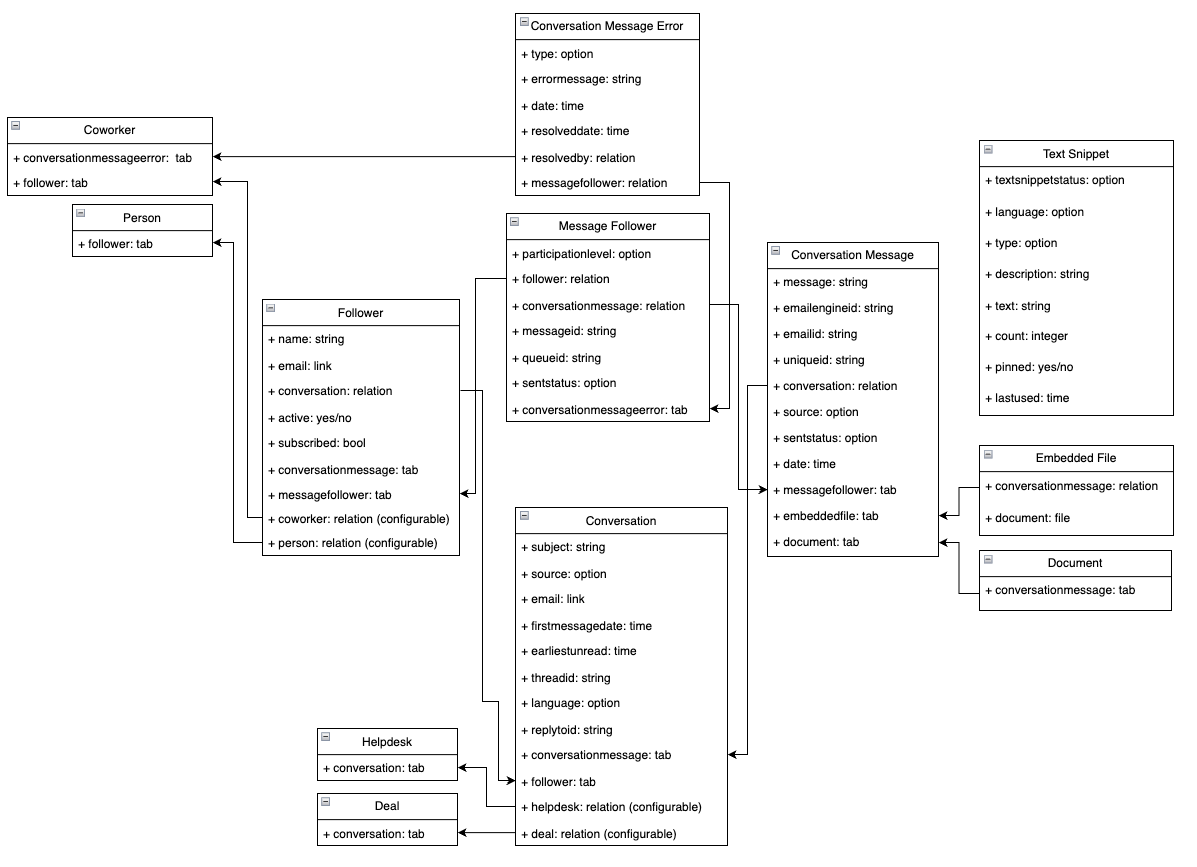
Conversation - Represents an email thread containing a collection of related messages. A conversation can be attached to a conversation parent and has followers. Created when sending or receiving the first message of an email thread.
-
Conversation Parents - The main object created alongside the conversation. Can be a ticket, deal, or any limetype you want to attach the conversation to. This is what users see in their main work views.
-
Conversation Message - Represents a single message in a conversation. Each response within the same email thread creates a new conversation message.
-
Followers - Represent every participant involved in a conversation. Shows everyone who at some point in the thread has sent or received an email.
-
Message Followers - Represent a follower of a particular message. Each message has its own list showing who was involved in that specific message (To, CC, BCC).
-
Follower Parents - Limetype that follows a conversation, allowing you to map participants by their email addresses to existing entities in your application (person, company, etc.). A follower will be created per conversation but always connected to the same parent. Example: A user with address
test@test.cominvolved in 5 conversations will have 5 followers, all connected to the same person record. -
Document - Represents attachments connected to an email.
-
Embedded Files - Represents embedded images that are part of an email body.
Example Scenario
Situation: John Doe emails support@company.com about an issue, with his colleague Jane Doe on CC.
What happens:
- Conversation: New thread created for John's email, attached to a support ticket (conversation parent)
- Conversation Message: John's initial email stored as first message; any replies become new messages
- Followers: John Doe, Jane Doe, and support team members added as followers
- Message Followers: Each email has its own list - if support removes Jane from a reply, her follower becomes inactive but remains in the conversation
- Follower Parents: John's email address mapped to his customer profile, linking all his conversations to his record
- Documents: Any attachments stored and linked to the specific message
See the Database Structure section below for the technical UML diagram.
Components
The email integration consists of the following components:
- Web Components
- Custom Endpoints
- EmailEngine
- Database Structure
- Webhook
- Taskhandler
Web Components
Email Composer
The web component lwc-email-composer enables the user to select an account, find recipients among the follower parents or create them on the fly, compose subject and body, pick attachments and send the message.
When configured as the activities composer for the conversation limetype it's rendered as part of the activity feed and the user can reply while seeing all previous messages of this conversation. This view configuration will be imported as part of the Lime Admin setup step or add the tag manually as composer web component under Views -> Conversation -> Activities.
Feed Item Factory
Typically, you can configure the values of a feed item in the Activity item view of a limetype. However, for conversation messages in the email integration that's not enough, so the package provides its own factory implementation. This, for example, enables the integration to choose the style of the message or construct the heading based on the source and context. Any configuration on the conversation message in Lime Admin will most likely be overwritten by the factory.
Unread Message Indicator
The lwc-unread-message-icon-indicator web component can be configured in the table view of a conversation parent limetype to highlight conversations with unread messages. Clicking the indicator opens the conversation parent in a sidepanel with the oldest unread conversation stacked on top.
To configure it, add a table column in the view config for your conversation parent limetype using a MIN aggregate on the conversation's earliestunread property:
{
    "property": "conversation.earliestunread",
    "title": "Unread",
    "isDefault": true,
    "aggregated": true,
    "aggregate": {
        "operator": "MIN"
    },
    "component": {
        "name": "lwc-unread-message-icon-indicator",
        "props": {}
    }
}
The component is available in the Lime Admin table column picker as "Unread conversation indicator".
Administrator Tools
The following web components are rendered as part of the package's schema and provide the administrator with tools to manage the email integration in Lime Admin.
OAuth2 Application Management: The page "OAuth2 Applications" renders the component lwc-oauth-app-management. It allows the administrator to create, update, and delete OAuth2 applications. Furthermore, the sync of applications and accounts can be started from here.
Imap Connection Management: The page "IMAP Connections" renders the component lwc-imap-management. It allows the administrator to create, update and delete IMAP connections.
Template Management: Under "Templates" the component lwc-template-management is rendered. It allows the administrator to create, update, delete and preview email templates. The component also provides the possibility to create a default template.
Account Management: Under "Email Accounts" the component lwc-account-management is rendered. It allows the administrator to create, update, delete and disable/ enable email accounts.
Custom Endpoints
The email integration exposes a set of custom endpoints used to interact with the EmailEngine API and the web client. These endpoints are treated as an internal API — breaking changes may occur without notice. For a full, up-to-date reference, see the "Email Integration API" section in your application's built-in API documentation.
EmailEngine
The email integration is built based on the EmailEngine Email API.
TLS for IMAP accounts
EmailEngine has a secure option for their IMAP and SMTP connections. This option can be changed in Lime Admin per IMAP connection: implicit TLS (Transport Layer Security) translates to the secure option being true while STARTTLS will save the option as false.
Implicit TLS vs STARTTLS
The TLS (Transport Layer Security) handshake (also known as SSL) is a crucial process that establishes a secure, encrypted connection between a client (in this case EmailEngine) and a server (in this case the customer's mail server). It involves a series of steps to authenticate both parties, agree on encryption algorithms, and generate shared secret keys for secure communication.
STARTTLS starts as an unencrypted connection and then tries to upgrade to a secure connection as part of the handshake. If an encrypted connection can't be established, the connection continues unencrypted. Then the connection could be intercepted and read by a third party.
Implicit TLS starts as an encrypted connection from the beginning. If one of the parties doesn't start encrypted, or they can't come to an agreement during the handshake, the connection fails. That means an established connection is always encrypted. IMAP servers typically use Implicit TLS on port 993 and SMTP servers on port 465, but this depends on the mail server configuration. As far as we know, Exchange On-Premise 2019 has no support for Implicit TLS.
Database Structure
The UML diagram below shows the database structure of the email integration. The mentioned tables and fields can be installed through the setup page in Lime Admin.
Email Address Handling
Email addresses are normalized to Unicode lowercase at system boundaries, ensuring consistent representation throughout the integration.
Note
RFC 6531 (SMTPUTF8) support varies by mail server. Some recipients may not be able to receive emails with Unicode characters in the local part.
Normalization
| Input | Output |
|---|---|
User@XN--LIM-SLA.TECH |
user@limä.tech |
USER@limä.tech |
user@limä.tech |
user@example.com |
user@example.com |
What happens:
- Punycode domains decoded (
xn--lim-sla.tech→limä.tech) - Unicode local parts preserved (RFC 6531 SMTPUTF8 support)
- Lowercased for case-insensitive matching
- Addresses without
@returned unchanged
Unicode vs Punycode Examples:
| Representation | Local Part | Domain | Full Address |
|---|---|---|---|
| Unicode | jöhn |
limä.tech |
jöhn@limä.tech |
| Punycode | jöhn |
xn--lim-sla.tech |
jöhn@xn--lim-sla.tech |
Where Normalization Occurs
Backend: At object construction/property access:
MessageParticipant.address— normalized in constructorAccount.address/.aliases— normalized in settersFollower.address.value,FollowerParent.address.value,Conversation.address.value— normalized via property wrapper
Frontend: Applies identical validation and Unicode normalization before submission.
Why This Matters
Without normalization, user@xn--lim-sla.tech (database) ≠ user@limä.tech (user input) — causing lookup failures. Normalizing at boundaries ensures all comparisons work correctly.
Webhooks
Webhooks are triggered when certain events on the monitored account occur.
- "newMessage" starts the email import pipeline to process the email and create a conversation in Lime CRM.
- "messageSent" triggers a data trail which can be found in Lime Admin.
- "messageBounced", "messageFailed" and "messageDelivered" trigger a data trail which can be found in Lime Admin. They do also trigger creation of error limeobjects.
See Configuration for webhook setup details.
Taskhandler
Import Messages
When a new email arrives, the import is handled by a three-step pipeline:
- Download — The raw email file is fetched from EmailEngine and saved in Lime CRM.
- Process — The saved file is parsed and all related Lime CRM objects are created (conversation, conversation message, followers, attachments, etc.).
- Notify — Email notifications are sent to followers.
Each step runs as a separate task, allowing the system to retry individual steps independently if something goes wrong.
Import State Machine
The import lifecycle is tracked by a state machine within Lime CRM. This means the authoritative state of an import lives inside Lime CRM—not on the mail server (e.g. not based on whether the email is marked as read or which folder it is in).
The key phases an import moves through are:
Downloading → File saved → Parsing → Creating objects → Notifying → Completed
If any step fails, the import transitions to one of three failure states (download failed, import failed, or notify failed) and surfaces in the System Health.
After the email has been fetched and saved, it is moved to a folder called Lime CRM Integration Processed in the monitored mailbox. This keeps the inbox clean and ensures the recovery process only has to scan a small number of emails, making it faster and more efficient.
Mailbox Folders (For Troubleshooting Only)
You should normally not need to work in the mailbox folders in Outlook or other email clients. The source of truth for import status is Lime CRM, especially the System Health page.
Inbox
If an email is still in Inbox, it has not entered the import pipeline yet. In practice, this means one of these:
- It is waiting to be picked up
- It was never picked up by the
newMessagewebhook, so Lime CRM is not aware that it exists
In the second case the email has no import state and therefore does not appear in the System Health page. The inbox scan is the safety net for this: it runs every hour and queues anything in Inbox that has not been saved as a file in Lime CRM.
Lime CRM Integration Processed
Emails are moved here as soon as they have been fetched and saved — that is, once the import is tracked by the state machine in Lime CRM. Being in this folder says nothing about whether the import succeeded. A message here may have:
- Been imported successfully
- Failed at a later step and be waiting in System Health
- Been imported as a conversation while a subsequent step failed (for example, sending automatic reply)
- Been dismissed/marked as processed from the System Health page
- Been deliberately not imported, and recorded as no problem at all. This applies to bounce messages, to automatic emails that do not match an existing conversation when
allow_automatic_emailsis disabled, and to anything discarded by a custom message processor
Lime CRM Integration Failed
This folder is a legacy folder from older versions and is no longer used by the current flow. Emails are never moved here, so there is no reason to monitor it. Accounts that are set up on the current import flow from the start never get a Failed folder at all.
Upgrading does not delete the folder or its contents. If you still have emails in it, use Sync emails on the Email Accounts page in Lime Admin. That action moves those messages back to Inbox and triggers the current import workflow.
Quick Answers
- If an email is in Inbox, has it been imported? No, treat it as not imported yet — and if the webhook never picked it up, it will not be in System Health either until the hourly inbox scan finds it
- If an email is in Processed, has it been imported? Not necessarily. It means Lime CRM picked it up and is tracking it; the import itself may still have failed, been dismissed, or been intentionally skipped
- An email is in neither Lime CRM nor System Health — what happened? Either it was never picked up (still in Inbox, waiting for the hourly scan), or it was intentionally not imported — a bounce, a skipped automatic email, or something a custom message processor discarded. Intentional skips are not failures and are never recorded as problems
- Should users handle these folders manually? Normally no, use the System Health page and the Sync emails action
System Health
When an email import fails at any step, it is recorded as a problem and made visible in the System Health page in Lime CRM. The System Health page shows:
- Which email failed and when
- What stage of the import failed
- What went wrong
- The original EML file, for detailed inspection
From the System Health page, administrators can retry a failed import or dismiss it if it should not be re-processed.
Recovery Process
There are two automatic recovery mechanisms that run as scheduled tasks:
Inbox scan — Runs every hour and scans the inbox of each active account for messages that have not yet been saved as a file in Lime CRM. This acts as a safety net for any emails that were missed by the webhook.
Stale import recovery — Runs once a day and scans for imports that have been stuck in a processing state for more than one hour. When found, the import is transitioned to a failed state and retried from the step it was stuck at — download, process, or notify.
Sync Apps and Accounts
Email account data is stored both in the Lime CRM application and on the Lime CRM server. If these get out of sync — for example after restoring a database backup — you can trigger a re-synchronization from the OAuth application page in Lime Admin.