FAQ & Troubleshooting
The email integration is an advanced add-on with many moving parts. For failed email imports, start with the System Health page in Lime CRM — it shows exactly which imports failed and why. For other errors, check the Email Integration Logs page in Lime Admin.
Is SMTP Insecure? - Why Do We Need the SMTP.Send Permission?
The service Lime CRM uses to connect to the email server uses a modern SMTP authentication method called XOAUTH2, which works with OAuth 2.0 access tokens. This method ensures secure email sending through Transport Layer Security (TLS) and standard SSL encryption.
For more information regarding SMTP AUTH, see SMTP submission (SMTP AUTH) in Exchange Online.
Why Do We Need a User With Delegated Access to the Mailbox?
This applies when the account uses one of the delegated connection methods (Microsoft Graph API – delegated or OAuth + IMAP/SMTP). Those use Microsoft's Delegated Permission model, which requires one user from the customer's domain, who has mailbox access, to consent to the email integration accessing the same mailbox. This user effectively grants permission for the email integration to access the mailbox, but they are not involved in sending or receiving emails.
Not required with application access
If the account uses Microsoft Graph API – application access, there is no such user. The integration authenticates as itself with application permissions, an administrator consents once for the tenant, and mailboxes are connected by email address — so no dedicated user, Full Access, or Send As permission is needed. Which mailboxes it can reach is scoped in Exchange Online instead. See API Permissions for the setup.
It is important to note that this user does not have to be a Lime user; it just needs to be a Microsoft user with access to the shared mailbox. The customer can choose whether this user is a personal account or a service account, depending on what works best for them.
The credentials for this account do not need to be shared with Lime Technologies during the installation. A system administrator in Lime CRM can do the authentication themselves. Multi-Factor Authentication is supported.
We use this model because of our third-party service and its integration with OAuth and because it gives the customer more flexibility and control over which users have access to the mailbox.
For more information about permissions and consent, see: Microsoft Permissions and Consent Overview.
Mark as Read Action on Conversation Object Is Not Visible or Not Clickable
Ensure that the limepkg-standard-actions package is added as a dependency to your solution.
Why Do I Need to Have an Email Address on My Coworker When I Send an Email From Lime CRM?
Emails sent from Lime CRM are dispatched through the monitored account. However, when an email is sent from Lime CRM, one follower is created for you. Followers are uniquely identified based on the email address, so an email address must be available on your coworker for use on follower.
Is Object Access Supported for Text Snippets?
Yes! Text snippets are retrieved using Lime Query which in turn supports object access.
Merge Codes Are Not Populated Correctly
- Verify all merge codes: Verify that the merge codes correspond to valid field names on the current limetype.
- Confirm the starting position: The text snippet merge codes and the automatic reply merge codes begin on the conversation object, while the email signature merge codes begin on the coworker object.
User Is Authenticated but Not Connected
If you see the error "User is authenticated but not connected" when trying to add or use the account, this indicates a permission or configuration issue with the dedicated user's access to the shared mailbox.
Things to Verify
-
Full Access permissions: Verify that the dedicated user has Full Access permission to the shared mailbox. See Required Permissions for Shared Mailbox Access for instructions. Note that the Exchange Admin Center UI might be unreliable - if possible, verify permissions using PowerShell.
-
IMAP enabled: Verify that IMAP is enabled for both the dedicated user account and the shared mailbox. Without IMAP enabled on both accounts, the connection will fail.
-
Conditional Access policies: Conditional Access can allow OAuth login but still block IMAP connections. Check for policies that may interfere with IMAP access:
- "Require compliant device"
- "Block legacy protocols"
- "Require MFA"
- Location/IP restrictions
If IMAP is blocked by Conditional Access, the mailbox connection fails with this error. To resolve this, exclude both the dedicated user account and the shared mailbox from any Conditional Access policies that could block IMAP connections.
SendAsDenied Error When Sending Emails
If you encounter a "SendAsDenied" error when trying to send emails from Lime CRM, this indicates that the dedicated user does not have Send As permission on the shared mailbox.
Solution
See Required Permissions for Shared Mailbox Access for instructions on how to configure the necessary permissions.
"Requested Account Can Not Be Authenticated" (AuthenticationFails)
If you see this error in the logs:
{'statusCode': 503, 'error': 'Service Unavailable', 'message': 'EmailEngine API error (503): Requested account can not be authenticated', 'state': 'authenticationError', 'code': 'AuthenticationFails'}
double-check the account configuration:
- Shared mailbox permissions. Verify that the dedicated user has all the required permissions on the shared mailbox. See Required Permissions for Shared Mailbox Access.
- Primary SMTP matches the UPN (Microsoft Graph API only). If you use Microsoft Graph API as the base scope, the shared mailbox's primary SMTP address must match its User Principal Name (UPN). See Resource Does Not Exist.
Why Aren't Emails Being Imported with an IMAP Account and a Shared Mailbox?
The email integration does not support shared mailboxes for IMAP accounts. The monitored email address must be a user account with IMAP and SMTP credentials. If you add a shared mailbox as a monitored email address, the email integration will monitor the account of the authenticated user, not the shared mailbox.
Why Can't I Get Implicit TLS to Work with an Exchange On-Premise 2019 Server?
As far as we come to understand, Implicit TLS is not supported by Exchange On-Premise 2019. We recommend using STARTTLS instead, which can be configured in Lime Admin. For more information, read here.
Exchange Online Certificates
Exchange Online uses certificates issued by trusted Certificate Authorities (CAs), which are widely recognized and included in most operating systems' root certificate stores. If EmailEngine encounters certificate errors when connecting to Exchange Online, check for proxies or firewalls that may intercept traffic and replace the server's certificate with their own.
Troubleshooting Network Interception
If you suspect a proxy or firewall is intercepting traffic, inspect the certificate presented by Exchange Online using tools like openssl:
openssl s_client -connect outlook.office365.com:993 -showcerts
openssl s_client -connect smtp.office365.com:587 -showcerts
Confirm the certificate is issued by a trusted CA, such as "DigiCert". If the certificate is replaced by a proxy or firewall's certificate, see below:
Handling Certificate Errors
If EmailEngine encounters certificate validation errors:
- If your proxy or firewall intercepts secure traffic, ensure it uses certificates from a trusted CA or disable interception.
- Allow Insecure Certificates: As a last resort, you can allow insecure certificates for IMAP/SMTP by enabling the corresponding option in EmailEngine to bypass certificate validation. Caution: This is not recommended for production environments, as it reduces security! The setting can be found in the EmailEngine admin panel under Configuration > Service > Security Settings > Allow Insecure Certificates for IMAP/SMTP.
Microsoft Graph Notifications Don't Work (On-Premise)
New emails aren't imported right away for an Exchange Online account using Microsoft Graph API, and EmailEngine's log shows Failed to create MS Graph subscription, often with Subscription validation request timed out.
Microsoft has to reach the Lime CRM server from the internet to deliver notifications, and must get an answer within 10 seconds. Most problems come from the customer's network.
First Things to Check With the Customer
- Can Microsoft reach the server from abroad? Inbound HTTPS to
https://<public-host>/email/oauth/msg/notificationand.../lifecyclemust be open, and no geo-blocking, IPS or similar may delay traffic from other countries. This is the most common cause. - Is notificationBaseUrl set to
https://<public-host>/email? It must include/email. - Was it tested with a new email after the firewall or the setting was changed? Follow After the Fix for what to try if it doesn't come in.
- Can the server reach Microsoft? Outbound HTTPS to
graph.microsoft.comandlogin.microsoftonline.commust be open. See Firewall Openings.
For a step-by-step guide with logs and tests, see Troubleshooting Graph Notifications (On-Premise).
Emails With Plus Addressing Are Not Delivered
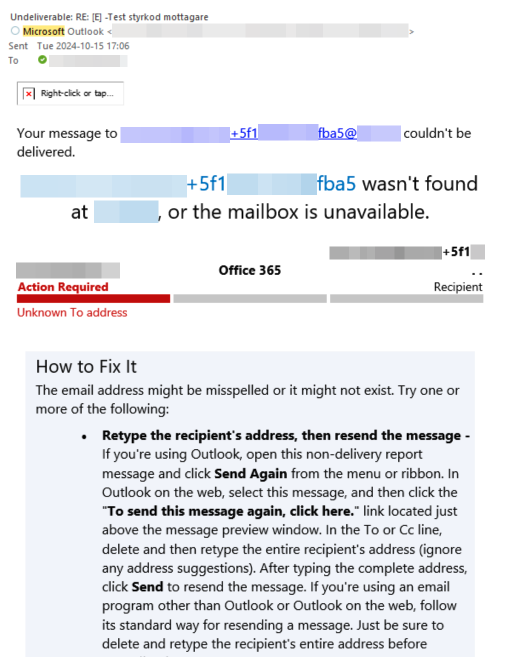
In some networks emails with plus addressing are blocked due to e.g. a spam filter or proxy / firewall in front of the email server hosting the monitored email account. This could either block every sender, or just senders from external email domains. The sender will receive an undeliverable email as shown below.
Plus addressing is one of three methods to identify existing conversations in Lime CRM. If this is blocked for you, we recommend to use another method instead.
Recipients Can Create Duplicate Conversations
When using Plus Addressing or Subject Line Identifier methods, recipients who reply to the original email (instead of the auto-reply) can trigger duplicate conversations.
Example:
- John emails
support@customer.comand CCs Lisa - Lime CRM creates a ticket and sends auto-replies to both John and Lisa
- The auto-replies contain the conversation identifier (in the address or subject)
- Lisa clicks "Reply All" on John's original email (which lacks the identifier)
- Lime CRM cannot match Lisa's email to the existing conversation
- Result: A new duplicate ticket is created, triggering another round of auto-replies
Why this happens:
The identifier only exists in emails that Lime CRM sends. When Lisa replies to John's original message, that email doesn't contain the identifier, so the system treats it as a brand new conversation.
Solution:
Use Message-ID Threading instead. This method uses invisible email headers that are properly maintained across the entire email thread, regardless of which message someone replies to. CC recipients can reply to any message in the thread without creating duplicates.
If you must use Plus Addressing or Subject Line Identifier:
- Ask recipients to reply to the auto-reply emails (not the original message)
- Be aware that CC recipients may create duplicate tickets
- Manually merge duplicate conversations when they occur
Monitoring and Recovering Failed Email Imports
Email Integration automatically imports most emails successfully, but some may fail due to configuration issues, size limits, or other problems. Failed imports are tracked within Lime CRM and surfaced in the System Health page.
How to Monitor Failed Imports
Navigate to the System Health page in Lime CRM to see all failed imports. For each failed import you can see:
- Which email failed and when
- What stage of the import it failed at
- What went wrong
- The original EML file, for detailed inspection
- A link to the related conversation, if the email could be connected to one
You can also add the System Health widget to your start page for an at-a-glance view. See Configuration for setup instructions.
How to Retry or Dismiss Failed Imports
From the System Health page you can:
- Retry — re-runs the import from the step that failed
- Dismiss — marks the problem as resolved without re-importing (use this for emails that cannot be imported, should not be imported, or have already been handled manually)
An Email Is in Neither Lime CRM nor System Health
Nothing failed — an import only reaches System Health once Lime CRM knows about the email. There are two explanations:
It was never picked up. The email is still in the Inbox of the monitored mailbox and Lime CRM has no record of it. This resolves itself: a recovery job scans the inbox every hour and feeds anything missed into the import flow, after which the email appears in Lime CRM, or in System Health if the import then fails.
Note
The Sync emails action in Lime Admin -> Email Integration -> Email Accounts does not speed this up — it moves emails from the legacy Failed folder back to the Inbox, and does not queue emails already sitting in the Inbox.
It was intentionally not imported. Bounce messages, automatic emails that do not belong to an existing conversation (unless Import automatic emails even if conversation not found is enabled), and anything discarded by a custom message processor are skipped on purpose. These are not failures, so they are never recorded as problems.
To tell the two apart, check which mailbox folder the email is in — see Technical: Mailbox Folders.
Common Causes and Solutions
1. Configuration Issues
Symptoms: Emails consistently fail to import for a specific account or configuration.
Solution:
- Open the System Health page and inspect the error description or stack trace on the failed import — this will often pinpoint the root cause
- Based on the findings, go to
Lime Adminand adjust the necessary configuration. Depending on the error, this could be account settings, automations, email integration configuration, or other related settings - Retry the failed imports from the System Health page
2. Size Limitations
Symptoms: Large emails with attachments fail to import.
Solutions:
- Open the System Health page and check the error details on the failed import to confirm it's a size-related issue
- The default size limit for incoming emails is 50 MB, configurable via the
limepkg_email.attachment_max_size_mbsetting — adjust it to match your mail server's maximum message size - Retry the failed imports from the System Health page after updating the configuration
If a specific email is too large to import even with an increased limit, follow the manual steps described in section 3 below.
3. Email-Related Failures
Symptoms: A specific email fails repeatedly even after configuration fixes.
Possible causes:
- Corrupted attachments — the email contains damaged files that can't be processed
- Unsupported formats — the email or attachments use formats the integration cannot handle
- Malformed email structure — the email doesn't follow standard RFC specifications
Solution:
If the email cannot be successfully imported, dismiss it from the System Health page, then create a conversation manually in Lime CRM. Copy any relevant content and attachments from the original email (available as an EML file in the System Health page), add the relevant participants as recipients, and reply from there.
When to Contact Support
Contact your Lime support team if:
- The same type of failure occurs repeatedly
- The Email Integration Logs show errors you don't understand
- Configuration changes don't resolve the failures
- You need help adjusting size limits or other technical settings
Email Loops
The email integration has automatic reply detection in place to protect against email loops. However, they can still happen.
Break the Loop
You need to temporarily pause the automatic replies from Lime CRM. This can be done by disabling the automatic reply feature in Lime Admin for the affected account. The next automatic reply from the customer will be imported without our own automatic reply, at which point the loop is broken. When you see that conversation in Lime CRM, you can re-enable automatic replies again.
Clean Up
The loop will have created duplicate conversations and conversation parents (e.g., tickets) in Lime CRM. You should delete all of these except for the first one. To do this:
- Go to the table explorer (for conversations and/or conversation parents).
- Filter by the subject.
- Sort by date.
- Delete all entries except the original.
Prevent Future Loops
Contact the person who caused the loop and make them aware of the missing headers in their automatic replies.
Resource Does Not Exist or One of Its Queried Reference-Objects Are Not Present
When using Microsoft Graph API as the base scope, this error may occur when adding a shared mailbox.
This error occurs because the User Principal Name (UPN) of the shared mailbox does not match the shared mailbox address you entered when adding the account in Lime Admin. These two values must match exactly.
The solution depends on where your organization manages user identities:
For Azure AD (Cloud-Only)
- In Entra Admin Center, navigate to Users > All users
- Find and select the shared mailbox
- Check the User principal name field in the overview
- Choose one of the following options:
- Option A: Reconnect the account in Lime Admin using the UPN as the shared mailbox address
- Option B: Update the UPN in Entra Admin Center to match your shared mailbox address, then reconnect the account in Lime Admin
For Local AD (On-Premise or Hybrid)
- Open Active Directory Users and Computers on your domain controller
- Locate the shared mailbox account
- Right-click the account and select Properties
- Navigate to the Account tab and check the User logon name (this is the UPN)
- Choose one of the following options:
- Option A: Reconnect the account in Lime Admin using the UPN as the shared mailbox address
- Option B: Update the UPN in Active Directory to match your shared mailbox address, wait for Azure AD Connect to synchronize the changes (typically 30 minutes for hybrid environments), then reconnect the account in Lime Admin